.png?width=168&height=30&name=Logo%20Color@4x%20(1).png)
Important note: New reconciliations can be added by reaching out to your Scan123 account executive or the Scan123 Customer Success team. After working with you to understand the requirements, an upload portal will be created for you to upload configuration documents for the reconciliation.
Locating your Upload Portal
- Access https://app.velocityreconcile.com/ to log into VelocityReconcile
- On your dashboard, you will be presented with a section labeled “Finish setup,” as seen in the image below
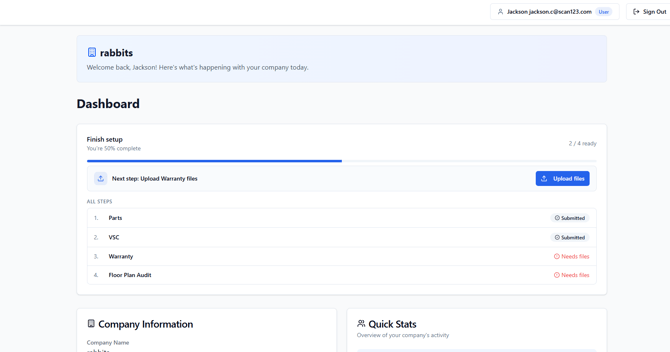
Uploading Documents
- Click on the blue
 button or on any reconciliation that has a
  tag. This will bring you to the upload prompt as shown below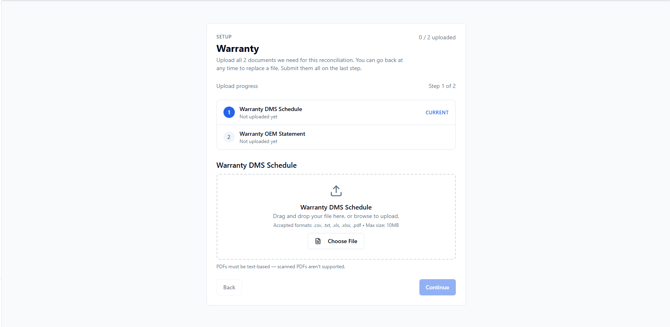
- Locate and download the documents requested by the upload prompt. Please ensure that you upload the document in one of the “accepted formats” (.csv, .txt, .xls, .xlsx, .pdf). Please note that all future uploads for this reconciliation type must be in the same file format as the one you upload to this portal.
- Upload the document requested by line 1 on the page and click “Continue”.
- Upload the document requested by line 2 on the page and click “Continue” or “Submit”.
- Once a document has been successfully submitted, you will see a green check appear as seen below:

- Please note that based on your reconciliation type, there may be more than two documents requested for upload. Please be sure to upload all the requested documents.
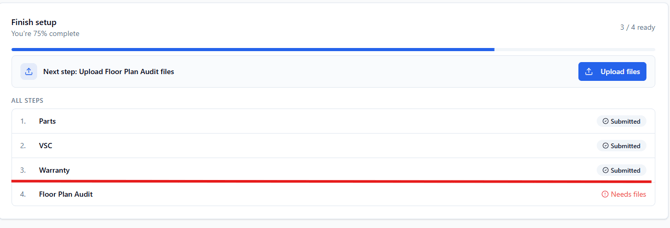
- You have now completed your uploads. Once complete, the reconciliation will have a submitted status. An example of this has been underlined in red below.