.png?width=168&height=30&name=Logo%20Color@4x%20(1).png)
Accessing Reconciliation
- Log in to Velocity Reconcile with your username and password.
- On the VelocityReconcile homepage, navigate to the left-hand menu and find the section titled “Reconciliation.”
- Select the Reconciliation type that you will be completing.
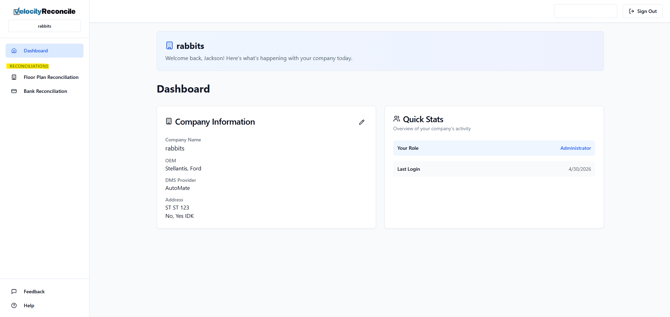
Reconciliation Page
- After selecting your desired Reconciliation, you will be brought to the Reconciliation’s page. Please use the following steps to do so.
- Select the Bank/OEM. *The option will change based on your selected reconciliation type
- Upload your DMS or Accounting ledger
- Upload the bank, OEM, or lender statement
- Click Reconcile
- Your Reconciliation results will appear below the Reconcile button.
*The option will change based on your selected reconciliation typ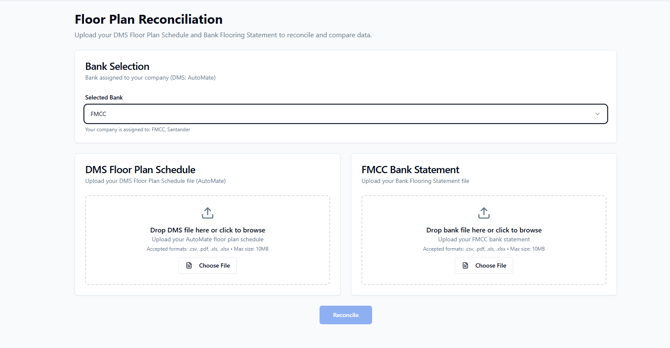
- Once the above steps have been completed, Reconciliation results will appear beneath the Reconcile button:
- Summary- shows a count of all the records in each file, and those that have been matched in both
- Matched - shows all items that have been matched between both files
- DMS/Accounting Only - shows items that are only on the titled documents ledger
- Bank/OEM/ Lender Statement - shows items that are only on the titled documents statement
- All Data - Shows all data, with the mis-matched row for both documents appearing first on the list
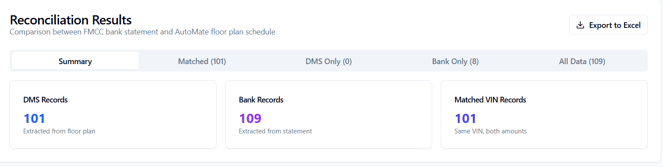
- Clicking on one of the tabs will display a list of the reconciled items.
- Line items that are mismatched will be listed at the top
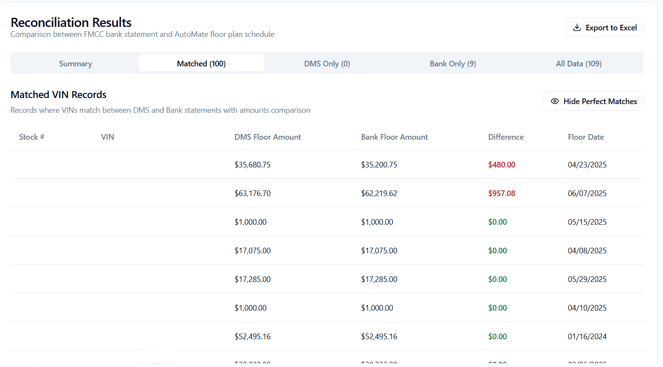
- You can click on the Hide Perfect Matches button to display only the mismatched items in both files to simplify your work.
- The DMS/Accounting and Bank/OEM/ Lender tab(s) display only mismatched items from statements.

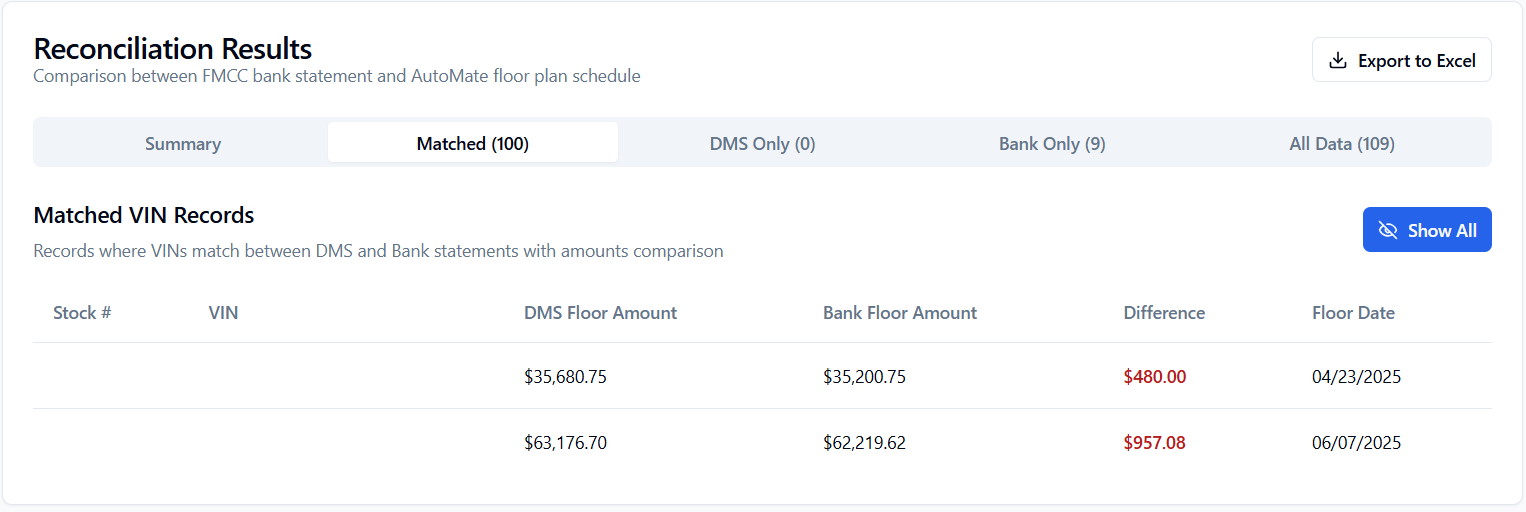
- All Data - Shows all data, with the mis-matched row for both DMS and Bank appearing first on the list
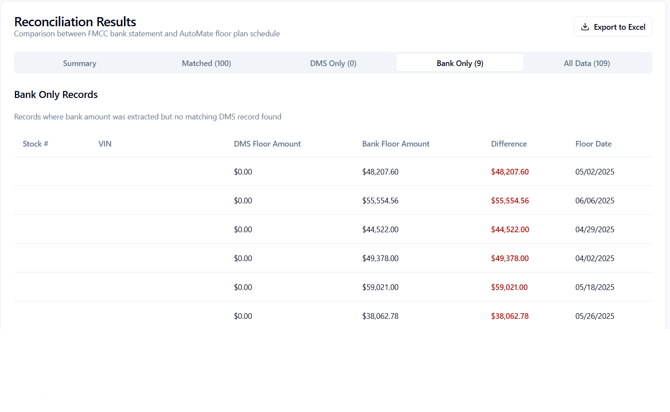
- At the top-right corner of the Reconciliation Results is an option to Export to Excel. This will allow you to export an .xlsx file of the results you have displayed. Please note that using the Hide Perfect Matches button and then downloading an .xlsx file will result in only the mis-matched items being added.
- Once you have the file you need, you are all done!